DESCRIPTION
The Flight Management Computer (FMC) provides for accurate management of all phases of flight.
フライトマネージメントコンピューター ( FMC ) は全てのフライトの過程における綿密なマネージメントを提供します
Flight planning, navigation and performance can be managed and controlled using the FMC.
FMC を使用することにより、フライトプラン、ナビゲーション、パフォーマンスをマネージし、コントロールすることができます
The FMC works in conjunction with the Autoflight system (AFDS) to allow complete management of lateral navigation (LNAV) and vertical navigation (VNAV).
FMC は水平ナビゲーション ( LNAV ) と垂直ナビゲーション ( VNAV ) の完全なマネージメントのためオートフライトシステム ( AFDS ) と結合して働きます
After programming the route of flight and all performance data into the FMC, the pilot can use the AFDS LNAV and VNAV functions exclusively to navigate the aircraft automatically without using manually tuned VORs and minimal use of the AFDS.
フライトのルートと全てのパフォーマンスデータを FMC にプログラムした後、パイロットは AFDS LNAV と VNAV 機能を手動での VOR を使用することなく独占的に飛行機を自動的にナビゲートするように最小限の AFDS の使用だけで使うことができます。
When the AFDS is engaged in LNAV and/or VNAV mode, the primary instrument to control aircraft flight path becomes the FMC.
AFDS が LNAV と、または VNAV モードにエンゲージした時、飛行経路をコントロールするためのプライマリー計器は FMC になります
After explaining the FMC unit we will explore the functions of the FMC by demonstrating a flight from KDFW to KLGA.
FMC ユニットの説明のあと、FMC の機能について KDFW から KLGA までのデモを使ってやってみましょう
Along the way we will explain all of the functions found on the FMC and how to properly use them.
全ての機能について FMC とそれらの適切な使用方法を見ながら説明していきます
The end of this chapter will explain how to program custom departure, arrival and approach procedures that are used frequently to program a route of flight.
このキャプチャーの最後では自分で作るデパーチャー、アライバル、アプローチプロシージャーの方法、フライトのルートのプログラミングについて説明しています
FMC Keyboard
005
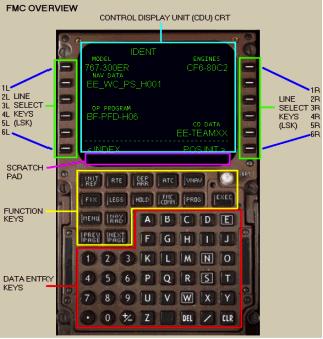
The FMC unit is called up on the panel using the FMC button located on the main panel or by using the keyboard combination <shift><6>.
FMC ユニットはメインパネルの FMC ボタンを押すか、キーボードで <Shift> <6> を押すことによって呼び出されます
The keyboard displays conveniently over top of the EICAS screens so that it can be used during flight without covering up essential flight instruments or the AFDS panel.
キーボードは都合の良いことに EICAS スクリーン上に表示され、フライトのあいだ必須の航行計器や AFDS パネルを覆い隠すことはありません
The Control Display Unit (or CDU) CRT displays all FMC data.
コントロールディスプレイユニット ( または CDU ) CRT には全ての FMC データが表示されます
The data screens are controlled using the Function Keys and the Line Select Keys (LSK).
データスクリーンはファンクションキーとラインセレクトキー ( LSK ) を使用してコントロールされます
When data is displayed in the CDU, it is arranged in “lines” of data that align with the left and right LSKs.
データが CDU に表示されている時、データの "lines" ( 行 ) は左右の LSK に配置されます
These lines of data are referred to as “data blocks”.
これらのデータの行は "data blocks"データブロック にて参照されます
The data contained next to a LSK can usually be changed using the keyboard and LSKs.
データは次の LSK ( たいていキーボードと LSK が変更され使用されること ) を含みます
This procedure will be shown during our practice route explanation.
この手順はルート説明の練習してみましょう
The Line Select Keys are arranged down the left and right sides of the CDU.
ラインセレクトキーは CDU の左と右側にあります
There are 6 keys on each side of the CDU.
CDU のそれぞれのサイドに 6 つのキーがあります
For ease of explanation these keys are named as follows: The keys on the left side are referred to from top to bottom as “1L” through “6L”, the keys on the right side are referred to from top to bottom as “1R” through “6R”.
良くわかるようにこれらのキーは次のように名前をつけます:左側のキーは上から順に 1L から 6L 、右があのキーは上から順に 1R から 6R
For example, if a reference is made to the “3R” LSK, this means the third button from the top down the right side.
たとえばもし 3R LSK を参照と言った場合は、右側の上から 3 番目のキーのことです
Manual entry of data into the FMC is done using the Data Entry Keys.
FMC へマニュアルで入力するにはデータエントリーキーを使用して行います
Keypad entries are displayed in the Scratch Pad.
キーパッド入力はスクラッチパッドに表示されます
If a mistake is made, pressing the “CLR” key will clear out each digit individually.
もしミスした場合は CLR キーを押すことにより、表示されている文字が消されます
Alternatively, pressing the “blank” key to the right of the “Z” key can clear an entire line of data.
また、"Z" キーの右にある "blank" キーによってもデータの入力行を消すことができます
Information in the Scratch Pad can be transferred into a CDU data block by pressing the adjacent LSK.
スクラッチパッドの情報は LSK キーを押すことにより LSK キーの横の CDU データブロックに送られます
If the data is in the correct format, it is transferred into the CDU when the LSK abeam the data block is pressed.
もしデータの内容が正しければ、データブロックの真横の LSK が押されたとき CDU に送られます
This procedure will be shown during our practice route explanation.
この手順はルートの説明の練習でやってみましょう
The Scratch Pad is also used by the FMC to display special messages.
スクラッチパッドは FMC がスペシャルメッセージを表示するためにも使用されます
There is a hidden mouse click area on the CDU CRT screen abeam the 1L LSK.
1L LSK の真横の CDU CRT スクリーンに隠されたマウスクリック範囲があります
It is highlighted in the picture at right.
右の絵のハイライトしているところです
Pressing this mouse area displays a “KA” as shown in the upper left corner of the CRT.
このマウスエリアを押すと CRT の左上の隅に "KA" が表示されます
“KA” stands for “keyboard assist”.
"KA" は "keyboard assist" キーボードアシストの意味です
When displayed, anything you type on your computers keyboard will be entered into the FMC scratchpad.
これが表示されている時は、パソコンのキーボードを使って FMC スクラッチパッドに直接入力することができます
This eliminates the need to press the Data Entry Keys using mouse clicks.
これによりマウスクリックを使ってデータエントリーキーを押す必要はなくなります
Please note that when the KA feature is being used, all keyboard assignments for panel functions are temporarily deactivated.
KA 機能はとても使いやすいですが、パネルファンクションのための全てのキーボードアサインが一時的に使えなくなることを覚えておいてください
To restore keyboard assignments to the panel functions, deactivate the KA feature by clicking the hidden mouse click area so that “KA” is no longer displayed on the CRT.
パネルファンクションのためにキーボードのアサインを戻したい時は、隠されたマウスクリックエリアをクリックして CRT 上の "KA" 表示を消し、 KA 機能を終了させてください

006
The Function Keys are used to display data screens and access functions that are used most often by the pilot during flight.
ファンクションキーはデータの表示とフライトの間しばしばパイロットが使用する機能へのアクセスのために使用されます
When a function key is pressed, the CDU displays the data for that function which can then be managed by the pilot.
ファンクションキーが押されたとき、CDU はパイロットのマネージできる機能のためのデータを表示します
Each screen will be described during our practice route explanation.
それぞれのスクリーンは練習ルートの説明のときに説明します
Here is a quick summary of the operable function keys (note the ATC, FMC COMM, and FIX buttons are not functioning at this time):
ファンクションキーの操作のクイックサマリー ( ATC, FMC COMM, FIX ボタンがこのとき機能しません )
INIT REF: Initialization and Reference page.
初期設定とリファレンスページ
When pressed, displays performance and/or reference pages.
これを押したとき、パフォーマンスと、またはリファレンスページが表示されます
The page displayed when this key is pressed is dependent on the current phase of flight.
ページはこのキーが押されたときのフライトのカレントフェーズが表示されます
All INIT REF pages have an “< INDEX” prompt next to the 6L LSK.
ALL INIT REF ページには "< INDEX" プロンプトが 6L LSK の次にあります
Pressing the 6L LSK displays the INIT REF index page.
6L LSK を押すと INIT REF インデックスページが表示されます
From this index page, selection of all INIT REF pages is possible.
このインデックスページからすべての INIT REF ページが選択可能になります
RTE: Route page.
ルートページ
When pressed, displays the ROUTE page.
これを押したとき、ROUTE ページが表示されます
This page is used to enter all route information.
このページは全てのルート情報の入力に使われます
This page permits entry of all waypoints for your route as well as Jet and Victor airways that are converted by the FMC into
waypoints.
このページはルートのための Jet と Victor 航空路はもちろん、全てのウェイポイントの入力を許可します。それらはウェイポイントに FMC により変換されます
DEP ARR: Departure and Arrival pages.
出発&到着ページ
When pressed, displays the departure and arrival procedure pages.
これを押すと、デパーチャーとアライバルプロシージャーページが表示されます
From this page you can select SIDs, STARs, and approach procedures for the departure and destination airport.
このページから出発と到着空港のための SID 、STAR 、アプローチプロシージャーを選択することができます
If the database has the information for that airport, you can select the desired procedure that is then entered into the route in the proper sequence.
もしデータベースが空港の情報を持っている場合は、望みのプロシージャー ( ルート内の適切な手順を入力 ) を選択することができます。
VNAV: Vertical navigation pages.
垂直ナビゲーションページ
When pressed, displays the pages required for proper VNAV operation.
これを押すと、適切な VNAV 操作に必要なページが表示されます
From these pages, automatic control of aircraft speed and altitude is possible.
これらのページから、飛行機のスピードと高度の自動コントロールが可能になります
LEGS: Legs pages.
レッグスページ
When pressed, displays the LEGS page that lists all waypoints in the current route.
これを押すと、現在のルート上の全てのウェイポイントがリストされる LEGS ページが表示されます
This page is used to make route modifications.
このページはルートの修正に使用されます
The route created by the waypoints listed in the LEGS page is followed by LNAV when properly engaged on the AFDS.
LEGS ページ上のウェイポイントリストを使ったルートの作成は AFDS のエンゲージによる LNAV に従います
All LEGS are listed on the EHSI and are connected using a pink course line.
全ての LEGS は EHSI にリストされ、ピンクのコースラインでつながっています
The pink course line is the track followed during AFDS LNAV mode operation.
ピンクのコースラインは AFDS LNAV モード運転のあいだ、トラックに従います
HOLD: Hold page.
ホールドページ
When pressed, displays the HOLD function or the HOLD pages.
これを押すと、HOLD 機能または HOLD ページが表示されます
This feature allows the pilot to create a holding pattern at any waypoint listed in the active LEGS page.
この特徴は現在の LEGS ページでリストされているどのウェイポイント上でのパイロットの作成したホールディングパターンをも許可します
PROG: Progress pages.
プログレス ( 進行 ) ページ
When pressed, displays the PROGRESS pages that list data related to the progress of the flight.
これを押すと、PROGRESS ページが表示され、フライトの進行に関係するデータがリストされます
EXEC: Execute key.
実行キー
This key lights up any time there has been a modification to FMC data that requires “execution” to become active.
このキーがライトアップした時はいつでも、FMC データが修正され "execution" 実行がアクティブになるための要求をしています
Prior to pressing the EXEC key, the FMC modifications are not activated and the FMC continues to use the old data.
EXEC キーを押す前では、FMC の修正はアクティブではなく、FMC は古いデータを使いつづけます
Once EXEC is pressed, the FMC modifications become active and the FMC uses the freshly input data.
一度 EXEC が押されると、FMC の修正がアクティブになり、FMC は新しく入力されたデータを使用します
007
MENU: Menu key.
メニューキー
When pressed, displays a MENU screen that has a prompt used when saving FMC LEGS data.
これを押すと、MENU スクリーンが表示され、このプロンプトは FMC LEGS データのセーブの時に使用します
NAV RAD: Navigation Radio page.
ナビゲーションラジオページ
When pressed, displays information about the currently tuned navigation radios.
これを押すと、現在チューニングされているナビゲーション無線についての情報が表示されます
PREV/NEXT PAGE: When pressed, cycles through pages on the CDU.
これを押すと CDU のページが次々に変更されます ( ページ変更 )
In the upper right corner of most CDU screens there is a page counter (x/x).
たいていの CDU スクリーンの右上の隅にページカウンターがあります ( x/x )
If there is more than one page of data available, the other pages can be viewed using these keys.
もしデータ表示可能な 1 ページ以上のページがある場合は、これらのキーを押すことで他のページを見ることができます
For example, if “1/3” is displayed in the upper right corner of the CDU, this means that page 1 of 3 pages available is currently displayed.
たとえば、もし 1/3 と CDU の右上隅に表示されている場合は、ページが 1 から 3 ページまで表示可能ということです
Press the NEXT PAGE button to view pages 2 and 3.
NEXT PAGE ボタンを押すことで 2 ページ、 3 ページを見ることができます
The next section explains how to use all of these functions and function keys in the programming and operation of the FMC.
次のセクションの説明はすべてのこれらの機能の使い方と、FMC のプログラミングと操作でのファンクションキーについてです

