LEGS Page Management
Understanding how to use the LEGS page for navigation is of critical importance.
ナビゲーションのための LEGS ページの使い方を理解することは大変重要です
This is the primary tool used to navigate the 767 from point A to point B.
これはポイント A からポイント B への 767 のナビゲート使用の主要なツールです
The proper use and execution of the LEGS page allows the AFDS LNAV feature to automatically fly the programmed route.
プログラムされたルートの自動飛行機能である AFDS LNAV による LEGS ページの使用と実行を適切に行います
Lets look at how the LEGS are displayed on the EHSI.
LEGS の使用方法と EHSI の表示を見てみましょう

035
The above pictures show our KDFW to KLGA route of flight on the EHSI in the MAP mode.
マップモードの EHSI 上にここでの例の KDFW から KLGA までのフライトのルートが右の図で見えます
The left picture shows the map in the 10-mile range.
左の図は 10-mile レンジのマップです
The right picture shows the map in the 320-mile range.
右の図は 320-mile レンジのマップです
We are sitting on runway 17R in KDFW ready for takeoff.
現在、離陸前の状態で KDFW 空港の 17R 滑走路にいます
Notice that the first point in our route (the TTT VOR) is displayed in pink.
ルートの最初のポイント ( TTT VOR ) がピンクで表示されていることに注意してください
This indicates that TTT is the active waypoint.
この表示は TTT がアクティブポイントであることを示します
The pink track line starts near the end of the runway.
ピンクトラックラインは滑走路エンドの近くからスタートしています
This is where a turn towards the active waypoint would theoretically occur.
これはアクティブウェイポイントの向かって旋回することが理論上起こることを示します
The remaining inactive waypoints of the route are all listed in white and connected by the pink track line.
ルートに残っているインアクティブウェイポイントは全て白色で表示され、ピンクトラックラインに接続されています
The EHSI MAP mode is only capable of displaying up to 320-miles of route data out in front of the aircraft.
EHSI MAP モードは飛行機の前方から 320-miles までの表示が可能です
The EHSI PLAN mode can be used to view the rest of the route to verify its accuracy.
EHSI PLAN モードはルートの残りの正確さを確かめるために使用することができます
Placing the EHSI mode selector to PLAN mode displays the following:
EHSI モードセレクターを PLAN モードに設定し表示させてください:
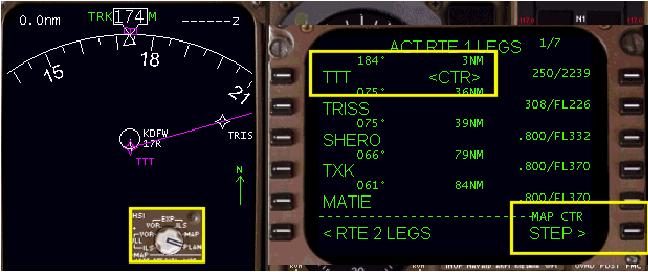
When the EHSI PLAN mode is selected, the EHSI changes the map display to a North orientation.
EHSI PLAN モードが選択されると、EHSI のマップ表示は北を上にして表示するマップに変わります
This is indicated by the green N and up arrow on the right side of the EHSI display.
これは EHSI 画面の右側の上向きのグリーンの N と矢印によって示されます
This allows for the easy comparison of the FMC programmed route to routes plotted on North oriented aviation maps.
この矢印は FMC のプログラムされているルートと、北基準の航空マップ上のルートプロットと簡単に比較するために使用できます
When the EHSI is put into the PLAN mode, a “STEP>” prompt appears at the 6R LSK.
EHSI が PLAN モードのとき、6R LSK には "STEP >" プロンプトが現れます
Pressing the 6R LSK changes the “map center” waypoint.
6R LSK を押すと "map center" マップの中央のウェイポイントが次々に変更されます
This permits stepping through the route waypoints one-by-one to view the entire route.
全体のルートのウェイポイントをひとつづつ次々に見ていくことができます
In the picture above, the TTT waypoint is displayed in the center of the EHSI map as indicated by the “<CTR>” prompt.
上の図では、TTT ウェイポイントは EHSI マップの中央に表示され、 "<CTR>" プロンプトで表示されています
Pressing the 6R LSK changes the EHSI map center to the next waypoint listed in the LEGS page.
6R LSK を押すことで LEGS ページにリストされている次のウェイポイントが EHSI マップの中央に表示されます
In our example, pressing the 6R LSK moves the map center to the TRISS waypoint.
ここでの例では、6R LSK を押すと TRISS ウェイポイントがマップの中央に移動、表示されます
Subsequent presses of the 6R LSK cause the map center to move down to the next waypoints listed on the LEGS page.
次次に続けて 6R LSK を押すと LEGS ページにリストされた次のウェイポイントがマップの中央に移動、表示されます
By continually pressing the 6R LSK, the entire route may be viewed to verify its accuracy.
頻繁に 6R LSK を押すことにより、ルーと全体の正確さを確かめることができます
036
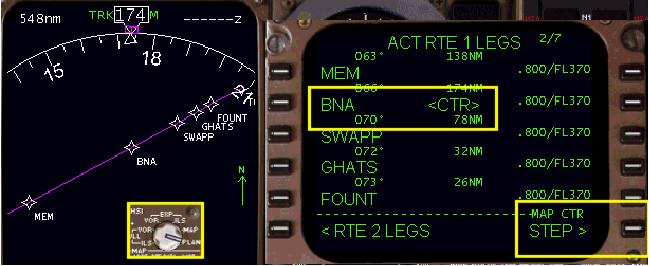
The picture above shows our route after stepping through the first page of LEGS data.
上の図にここでの例のルートが LEGS データの最初のページを通してステップ後の表示がされています
The scale of the EHSI map has also been changed to the 320-mile range.
EHSI マップのスケールも 320-mile レンジに変更されています
This permits viewing of more waypoints in the vicinity of the map center.
これにより、マップ中央の近いところにもっとたくさんのウェイポイントが見えています
To restore the map and LEGS page to normal, switch the EHSI back to the MAP mode.
マップと LEGS ページを通常に戻し、EHSI を MAP モードに戻してください
Now lets look at how the LEGS page is used after takeoff to manage route navigation.
離陸後のルートナビゲーションの操縦に使用する LEGS ページの使い方を見てみましょう
The picture below shows the LEGS page just after takeoff.
下の図はちょうど離陸後の LEGS ページの状態です
The aircraft is navigating in the AFDS HDG SEL mode on runway heading.
飛行機は滑走路ヘディングで AFDS HDG SEL モードでナビゲートされています
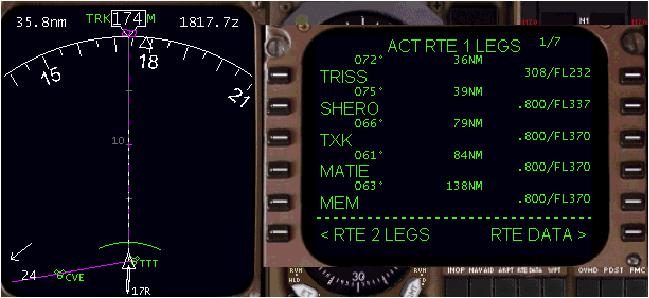
Notice that the TTT waypoint has already been passed during departure.
TTT ウェイポイントがすでに出発のとき通りすぎていることに注意してください
The active waypoint has changed to the TRISS intersection.
アクティブウェイポイントは TRSS インターセクションに変更されます
Anytime you pass within close proximity of the active waypoint, the FMC automatically updates the LEGS page to reflect the new active waypoint.
アクティブウェイポイントの近くを通ってパスした時は、FMC は LEGS ページに新しいウェイポイントを反映し自動的にアップデートします
The EHSI also updates to display the new active waypoint in pink.
EHSI もまた新しいアクティブポイントをピンクに表示をアップデートします
The previously active waypoint turns white and eventually disappears below the aircraft display.
前のアクティブポイントは白色に戻り、最後には飛行機の表示の後ろになって見えなくなります
In the example above, the aircraft is not flying towards the active waypoint.
ここでの上記の例では、飛行機はアクティブウェイポイントに向かって飛んでいません
This is obvious because the pink course line is now behind the aircraft and the active waypoint is not displayed on the screen.
これは明らかです。なぜならば、ピンクのコースラインが飛行機の後ろで、アクティブポイントは画面上に表示されていません
We must therefore position our aircraft using HDG SEL mode to a position that allows LNAV to start following the route.
その結果、飛行機の位置は HDG SEL モードを使用して LNAV でルートの追従をスタートする位置を作ります
The LEGS page shows us that the course between our present position and the TRISS intersection is 072°.
LEGS ページは現在の位置と TRISS インターセクションとのコースは 072°であることを表示しています
In our example, we select a 070° heading on the AFDS panel to head toward the TRISS intersection.
ここでの例では TRISS インターセクションに機首を向けるように、AFDS パネルのヘディングを 070°にセットします
From this position we can begin to navigate on our route.
この位置からルートのナビゲーションを始めることができます
The following sections explain how to navigate a route using the LEGS page.
以下のセクションで LEGS ページを使ったルートのナビゲートの方法についての説明をします
We shall demonstrate every type of route modification available.
利用できるルート修正の全てのタイプをデモします
Also, we shall demonstrate the different waypoint formats that the FMC accepts to accomplish our navigating tasks.
ナビゲートタスクで FMC が受け入れる異なるウェイポイントのフォーマットもデモします

