Saving Standard Instrument Departures (SIDs)
標準出発方式 ( SID ) の保存
Saving a SID can be very easy or very involved.
SID の保存はとても簡単に、またはとても深くできます
This depends on the type of SID that is being saved.
これはセーブする SID のタイプによります
Some SIDs are generic and have only one route that serves all runways.
いくつかの SID は総称的なもの、全ての滑走路の役に立つたったひとつのルートを持っています
Other SIDs contain transition routes that fan out from a common waypoint after departure.
他の SID は出発後の共通したウェイポイントからのトランジッションルートを含みます
And the most complicated SIDs have runway specific transition procedures that only apply when certain runways are used for
departure.
そして、ほとんどの複雑な SID は滑走路がかならず出発に使用する特定のトランジッションプロシージャーを持っています
Lets start with the most basic SID programming.
たいていの基本になる SID のプログラミングについてやってみましょう
SID programming is best accomplished on the ground at the subject airport.
SID のプログラミングは SID を作る空港の地上で行うのが一番良いです
This allows the pilot to view LEGS page entries on the EHSI to verify their accuracy.
これはパイロットがそれらの正確さを EHSI 上で LEGS ページの入力を確認しながら見ることができるからです
RTE1 must be utilized for SID programming because RTE2 data is not looked at by the save program.
RTE1 が SID プログラミングに使用されます。なぜならば RTE2 データは保存プログラムには見えないからです
Start programming on the ROUTE page (RTE1) by entering the departure and arrival airports.
出発と到着空港の ROUTE ページ ( RTE1 ) への入力からプログラミングをスタートします
Since the recall of SID data is airport specific, the FMC saves programmed SIDs using the departure airport name.
SID データの空港の詳細を呼び出した後、FMC は出発空港名を使ってプログラムされた SID を保存します
Therefore, it is important that the departure airport listed on the ROUTE page be the same airport that you are programming SID data for.
その結果、重要なことですが出発空港は SID データのプログラミングされた同じ空港が ROUTE ページに表示されます
The arrival airport entry is of little consequence and is not saved.
到着空港の入力はすこし consequence で保存されません
Programming SIDs is easiest using the LEGS page.
SID プログラミングは LEGS ページを使って簡単に行えます
After programming the ROUTE page with the departure and arrival airports, press the LEGS key to display the LEGS page.
出発、到着空港といっしょに ROUTE ページでプログラミングした後、LEGS キーを押して LEGS ページを表示します
This page should be blank with “-----“ shown at the 1L data block.
このページは 1L データブロックにブランクの "-----" が表示されています
Start programming the SID waypoints into the LEGS page in the exact order shown in the departure procedure.
見えているように出発プロシージャーの正確な順序を LEGS ページの SID ウェイポイントのプログラミングから始めます
When this is finished, press the EXEC key to lock in the programming (note: it may be necessary to ACTIVATE the route if this is the first route programmed for the departure airport).
これが終了したら、EXEC キーを押してプログラミングをロックします ( ノート:もしこれが出発空港の最初のルートプログラムなら、ルートを ACTIVATE にする必要があります )
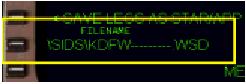
With all LEGS of the SID programmed into the LEGS page we can now save the route as a SID.
LEGS ページの SID プログラムのすべての LEGS は SID と同様にルートを保存します
Access the SAVE ROUTE menu using the MENU key on the FMC keyboard.
FMC キーボードの MENU キーを使用して SAVE ROUTE メニューを呼び出します
On page one of the SAVE ROUTE menu the 3L LSK has a “<SAVE LEGS AS SID” prompt.
SAVE ROUTE メニューのページ 1 で 3L LSK が "< SAVE LEGS AS SID" プロンプトになります
Press the 3L LSK to open up the FILENAME data block at the 5L LSK.
3L LSK を押して 5L LSK に FILENAME データブロックを出します
Type the name of the SID into the scratchpad using the FMC keyboard.
FMC キーボードを使ってスクラッチパッドに SID の名前を入力します
Then press the 5L LSK to transfer the SID name to the FILENAME data block.
それから 5L LDK を押して SID 名を FILENAME データブロックへ送り込みます
This action opens up the “<SAVE TO DISK” prompt at the 6L LSK.
この動作により 6L LSK に "< SAVE TO DISK" プロンプトが出ます
Pressing the 6L LSK saves the LEGS as a SID at the departure airport.
6L LSK を押して出発空港の LEGS の SID を保存します
Once you have a SID saved to disk, the next time you access the DEP page for the airport, the SID programmed will be listed.
いったん SID をディスクに保存したら、次の時は空港の DEP ページを出せば、プログラムした SID が表示されます
Selecting this SID from the DEP page places the LEGS programmed for the SID in the appropriate place in the route.
DEP ページからこの SID を選択したら、ルートの適当なところに SID のための LEGS プログラムが置かれます
Now lets go through an example that demonstrates SID programming in action.
この例のデモを通して SID プログラミングをやってみましょう
080
Example 1: TIFTO TWO DEPARTURE at KMCI (Kansas City, MO, USA)
This SID is the most basic type found.
この SID はもっとも基本的なタイプです
It calls for flying ATC assigned heading for vectors to join the SID.
SID に接続するベクターのヘディングに ATC にアサインされます
The only waypoints required for this SID are the MCI VOR and the TIFTO intersection.
この SID のためのひとつのウェイポイントの要求は MCI VOR と TIFTO インターセクションです

To begin programming, press the RTE key on the FMC keyboard to call up the ROUTE page.
プログラミングを始めるために、FMC キーボードの RTE を押して ROUTE ページを呼び出します
Put KMCI (the identifier for the Kansas City airport) into the 1L data block for the departure airport.
出発空港のために 1L データブロックに KMCI ( カンサスシティー空港のための識別番号 ) を入れます
The arrival airport is not required when programming SIDs, so any airport identifier can be placed in the 1R data block for arrival airport.
到着空港は SID のプログラミングの時は必要ありません。どれかの空港の識別番号を到着空港として 1R データブロックに入力してください
Now press the LEGS key on the FMC keyboard to display the LEGS page.
FMC キーボードの LEGS キーを押して、LEGS ページを表示します
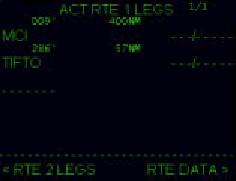
Type “MCI” into the scratchpad and press the 1L LSK.
スクラッチパッドに "MCI" と入力し 1L LSK を押します
This makes the MCI VOR the first waypoint in the route.
これはルートの最初のウェイポイントに MCI VOR を置きます
Then type “TIFTO” into the scratchpad and press the 2L LSK.
それから "TIFTO" とスクラッチパッドに入力し、2L LSK を押します
This makes the TIFTO intersection the second waypoint.
これは TIFTO インターセクションを 2 番目のウェイポイントとします
Now ACTIVATE and EXEC the route.
ACTIVATE と EXEC を押してルートをアクティブにして実行します
The LEGS page should look similar to the picture shown at right.
LEGS ページは右の絵のようになります
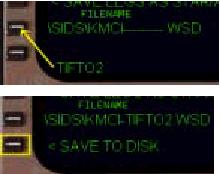
With the SID waypoints programmed, we can now save the LEGS as a SID.
SID ウェイポイントのプログラムと、LEGS の SID を保存することができます
Press the MENU key on the FMC keyboard and then press the 5R LSK to access the SAVE ROUTE pages.
FMC キーボードの MENU キーを押して、5R LSK を押して SAVE ROUTE ページを呼び出します
On the SAVE ROUTE pages, press the 3L LSK labeled “< SAVE LEGS AS SID”.
SAVE ROUTE ページ上で、3L LSK "< SAVE LEGS AS SID" を押します
Now type “TIFTO2” into the scratchpad and press the 5L LSK to transfer the name of the SID to the FILENAME data block.
スクラッチパッドに "TIFTO2" と入力し、5L LSK を押して SID 名を FILENAME データブロックに送ります
Now press the 6L LSK to save the SID to disk.
6L LSK を押して SID をディスクに保存します
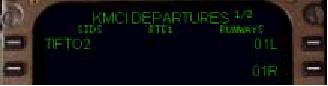
The SID is now saved in the FMC SIDS folder.
SID は FMC SIDS フォルダーに保存されました
Now anytime you are departing KMCI and press the DEP ARR key to access the departure page, the TIFTO2 departure procedure shall be listed as an available SID.
いつでも KMCI の出発には DEP ARR キーを押して出発ページを呼び出すことにより、TIFTO2 出発プロシージャーが利用可能な SID として表示されます

