Saving SID Departure Transition Procedures
The previous example showed how to program and save a basic SID procedure.
前の例でプログラムの方法と基本的な SID プロシージャーの保存について説明しました
Now lets look at programming a SID that contains transition procedures.
トランジッションプロシージャーを含む SID のプログラミングを見てみましょう
SID departure “transitions” are routings within the same SID that use different departure fixes.
SID デパーチャー "transitions" トランジッションは、同じ SID の違った出発に固定で使用されるルート作成です
Most transition procedures share at least one common fix.
たいていのトランジッションプロシージャーは少なくともひとつのフィックスを共有します
To program the entire procedure with all transitions we must first create and save a basic SID procedure.
全てのトランジッションといっしょに全体のプロシージャーのプログラムするため、最初に基本の SID プロシージャーを作成、保存しなければなりません
The basic SID procedure must contain at least the initial departure waypoint.
基本の SID プロシージャーは少なくとも最初のデパーチャーウェイポイントを含まなければなりません
It can also contain other waypoints common to all transition procedures.
他のウェイポイント ( 全てのトランジッションプロシージャーで共通の ) も含むことができます
After the basic SID procedure is saved we can then create and save the transition procedures as separate files.
基本の SID プロシージャーを保存した後、別のファイルとしてトランジッションプロシージャーを作成、保存することができます
Let’s use another KMCI departure as an example of how this works.
このやり方の例として別の KMCI デパーチャーを使ってやってみましょう
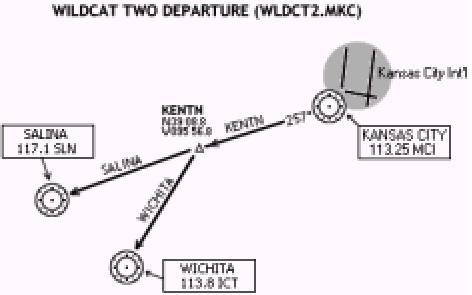
Consider the WILDCAT2 departure displayed at right.
右に表示されているように WILDCAT2 デパージャーについて考えてみましょう
This SID contains 3 transitions shown on the diagram: KENTN, SLN and ICT.
この SID はダイアグラムに見えるように 3 つのトランジッションを含みます:KENTN, SLN, ICT
The only common point all three transitions share is the MCI VOR.
全ての 3 つのトランジッションのただひとつの共通ポイントは MCI VOR です
Therefore, to begin programming the SID we need to create the basic SID procedure.
ゆえに、SID のプログラムを始めるには、基本の SID プロシージャーを作る必要があります
In this case it will only contain the MCI VOR since this is the beginning point of the procedure and a common point to all three transitions.
このケースでは、ただひとつの MCI VOR を含みます。これはプロシージャーの最初のポイントと全ての 3 つのトランジッションの共通ポイントです
Start on the ROUTE page and enter KMCI for the departure airport (if this was not done already).
ROUTE ページにして、出発空港に KMCI を入力して始めます ( もしすでに行っていなければ )
Press the LEGS key to go to the LEGS page and type “MCI” into the scratchpad and press the 1L LSK.
LEGS キーを押して LEGS ページにし、スクラッチパッドに "MCI" と入力して 1L LSK を押します
If there are any other waypoints listed in the LEGS page you must DELETE them prior to saving the SID.
もしどれか他のウェイポイントが LEGS ページに表示されていたら、SID を保存する前にそれらを DELETE しなければなりません
Once MCI is the only waypoint in the LEGS page, EXEC the changes and then save the LEGS as a SID just like we did in Example 1
above.
いったん MCI が LEGS ページで他だひとつのウェイポイントになったら、EXEC で実行したあと、上の例 1 で行ったと同じように LEGS の SID を保存します
The SID should be saved as “WILDCAT2”.
SID は "SILDCAT2" で保存します
With the basic SID saved, we can now create the transition procedures.
基本の SID の保存といっしょに、トランジッションプロシージャーを作成することだできます
Start by creating the KENTN transition.
KENTN トランジッションの作成を始めましょう
Press the LEGS key on the FMC keyboard to return to the LEGS page.
FMC キーボードの LEGS キーを押して LEGS ページに戻ります
Type “KENTN” into the scratchpad and press the 1L LSK.
スクラッチパッドに "KENTN" と入力して 1L LSK を押します
Delete the MCI waypoint so that KENTN is now the only waypoint listed in the LEGS page.
MCI ウェイポイントの削除で、KENTN は LEGS ページのただひとつのウェイポイントとして表示します
Press the EXEC key to lock in the changes.
EXEC キーを押して変更のロックを行います
Press the MENU key on the FMC keyboard and access the SAVE ROUTE pages.
FMC キーボードの MENU キーを押して、SAVE ROUTE ページを呼び出します
Press the NEXT PAGE key on the FMC keyboard to access page 2 .
FMC キーボードの NEXT PAGE キーを押してページ 2 にします
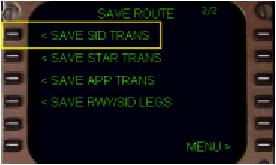
On this page is a “<SAVE SID TRANS” prompt at the 1L LSK.
このページで 1L LSK "< SAVE SID TRANS" プロンプトになります
Press the 1L LSK to open the FILENAME box at the 5L LSK.
1L LSK を押して 5L LSK に FILENAME ボックスを開きます
The box is formatted to save the LEGS as a SID transition.
ボックスは LEGS の SID トランジッションの保存のためにフォーマットされます
082
The format to save a SID transition is “SIDNAME.TRANSNAME”.
SID トランジッションの保存のフォーマットは "SIDNAVE.TRANSNAME" です
So for our example, type “WILDCAT2.KENTN” into the scratchpad and press the 5L LSK.
ここでの例では、"WILDCAT2.KENTN" とスクラッチパッドに入力し、5L LSK を押します
Then press the “<SAVE TO DISK” prompt at the 6L LSK to save the SID transition.
6L LSK "< SAVE TO DISK" プロンプトを押して SID トランジッションを保存します
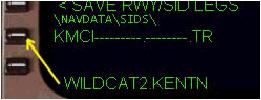
It is important to use the exact SID name used for the basic SID name when saving the transition.
トランジッションの保存の時、基本 SID 名を使って正確に SID 名を使うことが重要です
If a different SID name is used or a mistake is made when saving the transition, the transition procedure will not be listed when the SID is selected on the DEP page.
もし違う SID 名を使うかトランジッションの保存の時に間違えた場合は、トランジッションプロシージャーは DEP ページで SID を選択した時に表示されません
Now we can create the last two transitions.
最後の 2 つのトランジッションを作成することができます
Return to the LEGS page and type “SLN” into the scratchpad and press the 2L LSK.
LEGS ページに戻って、スクラッチパッドに "SLN" ト入力し、2L LSK を押します
This places the SLN waypoint after the KENTN waypoint (that is part of the SLN transition).
これは KENTN ウェイポイントの後に SLN ウェイポイントを置きます ( SLN トランジッションの一部です )
Press EXEC to execute the changes.
EXEC を押して変更を実行します
Return to the SAVE ROUTE pages and use the “< SAVE SID TRANS” prompt again to open the FILENAME box at 5L and save the transition as was done before.
SAVE ROUTE ページに戻り、"< SAVE SID TRANS" プロンプトを使ってもう一度 5L に FILENAME ボックスを開き、トランジッションを保存します
The name for this transition is “WILDCAT2.SLN”.
このトランジッションの名前は "WILDCAT2.SLN" です
For the ICT transition, return to the LEGS page and type “ICT” into the scratchpad and press the 2L LSK.
ICT トランジッションの場合、LEGS ページに戻り、スクラッチパッドに "ICT" ト入力し 2L LSK を押します
This places the ICT waypoint after the KENTN waypoint (that is also part of the ICT transition).
これは KENTN ウェイポイントの後に ICT ウェイポイントを置きます ( ICT トランジッションの一部です )
Delete the SLN waypoint so that only KENTN and ICT remain on the LEGS page.
SLN ウェイポイントを削除し、LEGS ページに KENTN と ICT のみ残します
Press EXEC to execute the changes.
EXEC キーを押して変更を実行します
Return to the SAVE ROUTE pages and use the “< SAVE SID TRANS” prompt again to open the FILENAME box at 5L and save the transition as was done before.
SAVE ROUTE ページに戻り、"< SAVE SID TRANS" プロンプトを押して再び 5L に FILENAME ボックスを開き、トランジッションを保存します
The name for this transition is “WILDCAT2.ICT”.
このトランジッションの名前は "WILDCAT2.ICT" です
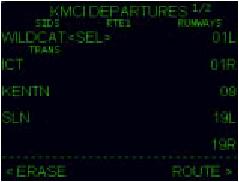
When finished, the DEP page for KMCI will show the WILDCAT2 departure in the SID listing.
最後のとき、KMCI のための DEP ページは SID リストに WILDCAT2 デパーチャーが表示されます
Pressing the LSK abeam the WILDCAT2 SID causes the SID transitions to be displayed (as shown at right).
WILDCAT2 SID の真横の LSK を押すと、SID トランジッションが表示されます ( 右の絵のように )
Selecting one of these transitions adds the selected LEGS to the LEGS page.
これらのトランジッションのひとつを選択し、LEGS ページでの LEGS 選択に追加することができます
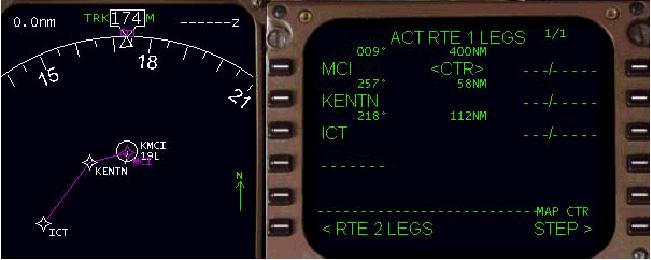
The picture below shows the LEGS listing and EHSI MAP view when the ICT transition is selected.
下の絵で LEGS が表示されているのが見えます。ICT トランジッションが選択されているのが EHSI マップに見えます