100
Advanced FMC Data Programming Techniques
上級 FMC データプログラミングテクニック
This section describes some techniques that
can be used to expedite programming FMC Data.
このセクションでは FMC データのプログラミングをはかどらせるために使うことができるいくつかのテクニックについて説明します
With the use of Windows Notepad and Windows
Explorer, programming large SIDS, STARs and
approach procedures into the FMC
requires only saving one page of LEGS data.
ウィンドウズのノートパッドとウィンドウズのエクスプローラーを使って、FMC
で大きな SID , STAR そしてアプローチプロシージャーを
LEGS データの 1 ページだけで保存できます
From this data, transitions can be created
and waypoints renamed if required.
このデータから必要であればトランジッションを作成し、ウェイポイント名を変更することができます
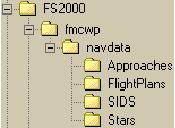
The FMC saves all FMC data in an FS2000 subfolder
named “fmcwp”.
FMC は全ての FMC データを FS2000 のサブフォルダー
"fmcwp" に保存します
This folder contains one subfolder called
“navdata”.
このフォルダーはひとつのサブフォルダー "navdata"
を含みます
This folder contains four subfolders, each
used to store the different types of saved
procedures.
このフォルダーは 4 つのサブフォルダーを含み、それぞれ違うタイプのプロシージャーの保存に使用されます
When an FMC procedure is created, the procedure
is saved in the appropriate folder using
a unique file name extension.
FMC プロシージャーが作成された時、プロシージャーは唯一のファイル名とエクステンションを使って適当なフォルダーに保存します
These files and extensions are explained
below.
これらのファイルとエクステンションは以下で説明します
SID Programming
Let’s begin with SIDs files.
SID ファイルから始めましょう
The advanced SID saving example from this
manual demonstrated how to save runway transitions,
the main SID, and the SID transitions.
このマニュアルから上級の SID 保存の例を、滑走路トランジッション、メイン
SID 、SID トランジッションの保存の方法でデモします
Those programming and saving efforts resulted
in files being created in the “\SIDS” folder.
これらのプログラミングと保存の努力の結果、"\SIDS"
フォルダーにファイルが作成されます
Each file corresponds to the type of procedure
saved.
それぞれのファイルはプロシージャーのタイプに相当するところに保存されます
The picture below shows the files listing
in Windows Explorer for the CHECKER2 procedure
at KCLT that we demonstrated earlier.
以下の絵に見えるように、ウィンドウズのエクスプローラーでファイルを表示し、KCLT
の CHECKER2 プロシージャーを最初にデモします
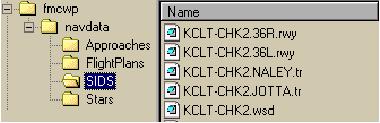
The file names all follow a standard format.
ファイル名はすべて一般のフォーマットです
The only variable is the extension that the
file is saved under.
ただ、変化するのはエクステンションです
The file extension is what determines what
type of procedure has been saved.
ファイルのエクステンションは保存されたプロシージャーのタイプを確定します
The extensions are as follows:
エクステンション ( 拡張子 ) の意味は以下のようです
|
*.wsd |
This is the main SID file.
*.wsd これはメイン SID ファイルです
This is the basic SID saved and is the file
the FMC looks for when listing available
SIDs for an airport.
これは基本の SID が保存され、空港のための利用可能な
SID が表示される時に FMC が見るファイルです
|
|
*.tr |
This is a SID transition file.
*.tr これは SID トランジッションファイルです
This is the file saved for each transition
in a SID and is what the FMC looks for when
listing available TRANS for the selected
SID.
これはそれぞれの SID のトランジッションが保存されているファイルで、SID
が選択された時に利用可能な TRANS として表示されるとき
FMC が見るファイルです
|
|
*.rwy |
This is a SID runway transition file.
*.rwy これは SID 滑走路トランジッションファイルです
This is the file saved for each runway transition
in a SID.
これは SID のそれぞれの滑走路トランジッションが保存されています
The FMC automatically looks for this file
for each SID and adds the waypoints in the
file when the file names runway is selected.
FMC はファイル名の滑走路が選択されたときファイルの中のそれぞれの
SID と追加されているウェイポイントのため、自動的にこのファイルを見に行きます
|
Each file for a SID shares a common nomenclature
to start:
それぞれの SID のためのファイルは共通の名前で開始されます
101
AIRPORT-SIDNAME.
In the file names for the CHECKER2, each
one begins with “KCLT-CHK2.”.
CHECKER2 のためのファイル名は、それぞれ "KCLT-CHK2." で始めます
This defines the airport and procedure name
for the FMC to properly find all SID files
related to the programmed procedure.
これは FMC が適切に全ての SID ファイルに関連するプログラムされたプロシージャーを見つけるための空港とプロシージャー名を定義します
In the case of the main SID, the “wsd” extension is added to the nomenclature
when saved.
メイン SID のケースでは、"wsd" エクステンション ( 拡張子 ) が保存の時に名前に追加されます
In the case of the transitions, the transition
“NAME.” is added followed by the “tr” extension when saved.
トランジッションのケースでは、トランジッション
"NAME." は保存の時に "tr" がエクステンションとして追加されます
And in the case of runway transitions, the
runway “NAME.” is added followed by the “rwy” extension when saved.
そして、滑走路トランジッションのケースでは、滑走路
"NAME." は保存の時に "rwy" がエクステンションとして使いされます
Each file contains a listing of waypoints
that defines the procedure.
それぞれのファイルはプロシージャーの定義でウェイポイントの表示が含まれます
To view these files, assign Windows Notepad
as the program used to open the files.
これらのファイルを見ることは、ウィンドウズのノートパッドでファイルを開いてプログラムを見ます
The picture below shows the file contents
of some CHK2 SID files.
下の絵のように CHK2 SID ファイルのいくつかの内容が見えます
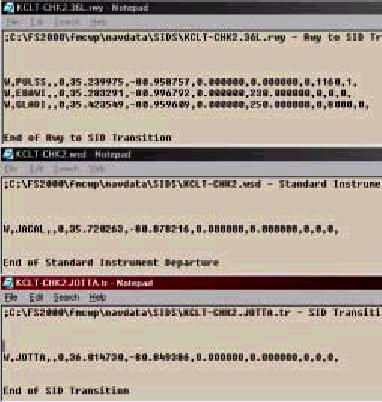
Notice there are waypoint names listed in
each file along with other FMC data.
ウェイポイント名がそれぞれのファイルに FMC
データが有ることに注意してください
The data is not as important as the fact
that each line represents to the FMC an exact
waypoint programmed for the procedure.
データは重要ではなく、プロシージャーのための正確なウェイポイントのプログラムが
FMC のそれぞれの行の供給が事実です
It should be readily apparent when reading
from top down how the FMC puts these waypoints
together to create the SID listing on the
LEGS page.
LEGS ページに表示されている SID の作成とこれらのウェイポイントを一緒に
FMC に入力する方法をトップダウンから読むとき簡単にわかります
The waypoints in the *.rwy, *.wsd and *.tr
files are combined to create the entire SID
procedure and then placed into the LEGS page
in proper order.
*.rwy , *.wsd , *.tr ファイルのウェイポイントは全体の
SID に結合されて作られ、適切な順番で LEGS
ページに置かれます
102
With our knowledge of how the FMC saves SID
data, we can use this to our advantage when
programming complex SID procedures.
SID データの FMC の保存方法の知識は、SID
プロシージャーの複合のプログラミングの時にこれは有利に使用できます
Instead of creating each individual procedure
on the LEGS page and saving them individually,
it is possible to create one SID file that
can then be broken up manually using Windows
Explorer to create the transition files.
LEGS ページのそれぞれの個々のプロシージャーを作成してそれらを個々に保存するのではなく、ひとつの
SID ファイルを作成して、そのあとマニュアルでウィンドウズのエクスプローラーを使ってばらばらにし、トランジッションファイルを作成することも可能です
Lets use the CHECKER2 at KCLT again to see
how we can program all waypoints into one
file and then use this file to create the
different SID files.
KCLT の CHECKER2 をもう一度使って、ひとつのファイルに全てのウェイポイントをプログラムする方法、そしてこのファイルを使って違う
SID ファイルを作成する方法をやってみましょう
Start programming the SID as usual by setting
up the ROUTE page ORIGIN with “KCLT”.
ROUTE ページ ORIGIN で "KCLT" とセッティングして
SID のプログラミングを始めます
Then proceed to the LEGS page.
LEGS ページに進みます
Program ALL waypoints required in the SID
(runway and departure transitions included)
into the LEGS page.
SID に要求される全てのウェイポイントを LEGS
ページでプログラムします ( 滑走路とデパーチャートランジッションを含む
)
The LEGS pages should look like the picture
below.
LEGS ページは下の絵のようになります
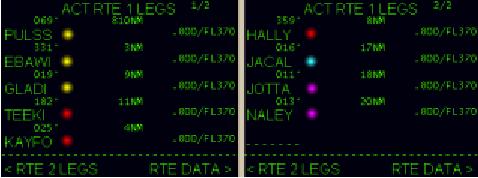
The colored dots indicate where the waypoint
came from.
カラーのドットがウェイポイントがどこからきているかを示しています
|
YELLOW= |
Runway 36L transition waypoints.
黄色 = 滑走路 36L トランジッションウェイポイント |
|
RED= |
Runway 36R transition waypoints.
赤色 = 滑走路 36R トランジッションウェイポイント |
|
BLUE= |
Main SID waypoint.
青色 = メイン SID ウェイポイント |
|
PINK= |
Departure transition waypoints.
ピンク = デパーチャートランジッションウェイポイント |
After activating and executing the route,
save the LEGS using the “< SAVE LEGS
AS SID” prompt on the SAVE MENU.
ルートをアクティブにし、実行した後、LEGS
で SAVE MENU の "< SAVE LEGS AS SID"
プロンプトを使って保存します
Name the SID “CHK2” since we want the file
name nomenclature to be accurate.
SID の名前 "CHK2" 、正確なファイル名をつけます
(Note: If you already programmed the CHK2
during the previous example, then use a different
name here for this example like “CHK99”
and then follow along using that name in
place of CHK2)
( ノート:もしすでに以前の例で CHK2 がプログラムされている場合は、たとえば
"CHK99" のように違う名前を使い、CHK2
の所に入れます )
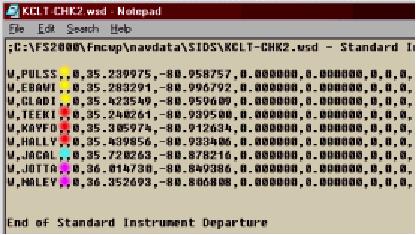
Find the saved file “KCLT-CHK2.wsd” in
the SIDS folder and open it up using Windows
Notepad.
SID フォルダーで "KCLT-CHK2.wsd"
で保存したファイルを見つけて、ウィンドウズのノートパッドで開きます
The contents should look like the picture
below.
下の絵のようになります
103
The colored dots were added for explanation
purposes.
カラーのドットは説明の目的で追加しています
Notice that all waypoints (including transitions)
for the CHK2 SID are listed in this one file.
このひとつのファイルの中に CHK2 SID のための全てのウェイポイント
( トランジッションを含む ) がリスト表示されていることに注意してください
We can now use Windows Notepad to cut, paste,
and save the individual transition files.
ウィンドウズのノートパットを使ってカット、ペースト、そしてセーブを使って個々のトランジッションファイルにすることができます
This also serves to clean up the main SID
file (*.wsd) so that only the JACAL waypoint
remains.
これは JACAL ウェイポイントだけを残し、メイン
SID ファイル ( *.wsd ) をきれいにすることにもなります
To do this, open the “KCLT-CHK2.wsd” file
using Windows Notepad.
これを行うには "KCLT-CHK2.wsd"
ファイルをウィンドウズのノートパッドを使って開きます
Then open up a second instance of Notepad
on your desktop.
そのあと、ノートパッドでデスクトップに 2
つめのファイルを開きます
The second instance should be blank.
2 つめのファイルはブランクです
Now start to cut and paste waypoints over
to the blank Notepad and save the waypoints
as the desired file type.
カットアンドペーストでウェイポイントをブランクファイルに入れ、望みのファイルタイプでウェイポイントを保存します
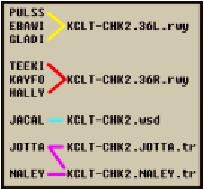
A list of the waypoints and the files that
they belong in is shown at right.
ウェイポイントのリストとファイルは右のようになります
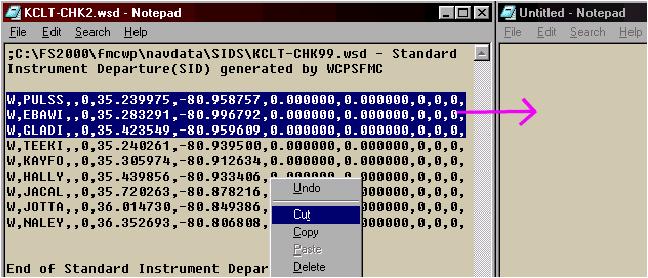
The pictures below demonstrate how we save
the waypoints for the runway 36L transition
file in the blank Notepad.
下の絵では、ブランクファイルに滑走路 36L
トランジッションのためのウェイポイントを保存する方法です
Also “copy” and paste the tag line “End
of Standard Instrument Departure” and place
it below the last waypoint on the new Notepad
page.
"copy" アンドペーストでタグ行を
"End of Standard Instrument Departure"
と入れ、新しいノートパッドページに最後のウェイポイントを置きます
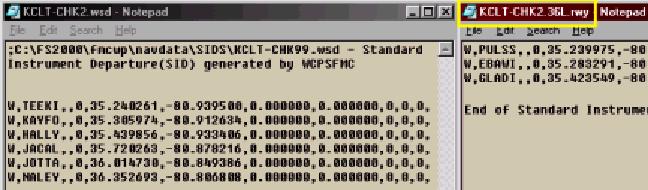
The waypoints for the runway 36L runway transition
are now saved in the proper file and have
been removed from the original file.
滑走路 36L 滑走路トランジッションのためのウェイポイントは、正しくファイルに保存され、オリジナルファイルから外されます
104
Next, save the runway 36R transition waypoints.
次に、滑走路 36R トランジッションウェイポイントを保存します
There is no need to open any new Notepad
instances on your desktop.
このときデスクトップに新しいノートパッドを開く必要は有りません
Just cut and paste the 36R transition waypoints
into the existing Notepad window over top
of the old waypoints, making sure to leave
the “End of Stan….” line below the new
waypoints.
カットアンドペーストで 36R トランジッションウェイポイントを開いているノートパッドウィンドウの古いウェイポイントの上から上書きして、確実に新しいウェイポイントの下の行に
"End of Stan・・・" を入れます
Then use the “Save As…” file saving feature
from the Notepad file menu to rename and
save the new file.
そのあとノートパッドのファイルメニューから
"Save As・・・" でファイル名を変更して新しいファイルとして保存します
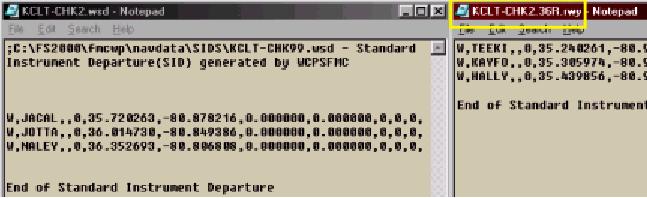
Notice now that the main file (*.wsd) is
down to just the main SID waypoint and the
two departure transitions.
メインファイル ( *.wsd ) はメイン SID ウェイポイントと
2 つのデパーチャートランジッションに分けられたことに注意してください
Next we cut and paste the transition waypoints
into their own files.
つぎに、それらのファイルのトランジッションウェイポイントをカットアンドペーストします
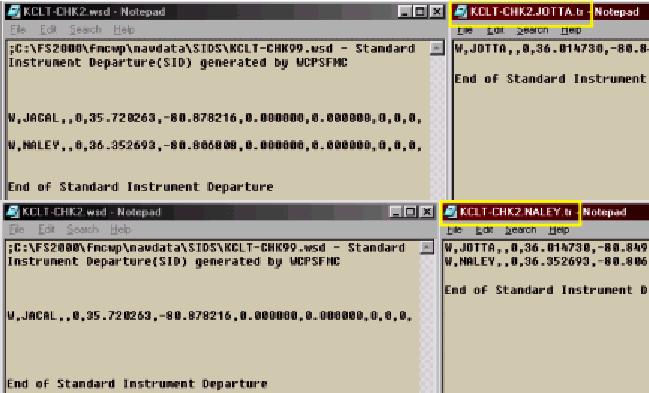
Notice that the *.wsd file has been cleared
of all transition waypoints.
*.wsd ファイルは全てのトランジッションウェイポイントを持っていることに注意してください
Now is the time to re-save the file so that
only the main SID waypoint JACAL remains.
メイン SID ウェイポイントを JACAL だけ残すように保存しなおします
With all SID transitions saved in the proper
files, and the main SID file containing its
proper waypoint; the SID is now properly
saved so that the FMC will correctly organize
it when selected on the DEP page.
全ての SID トランジッションを適切なファイルに保存し、メイン
SID ファイルは適切なウェイポイントを含み、SID
はもし DEP ページが選ばれたときは FMC が正しく組み合わせることができるように保存されます
Here are some important things to remember
when creating SID files manually as we have
described.
SID ファイルをマニュアルで作成する時に覚えておいて欲しいいくつかの重要なことがあります。それを説明します
| 1. |
Try to enter all the waypoints in the LEGS
page in a logical order prior to saving them.
それらの保存の前に LEGS ページで全てのウェイポイントを論理的に正しい順番で入力してください
Then when the *.wsd file is opened, the waypoints
are listed in a format that is easy to cut
and paste.
そのあと、*.wsd ファイルを開いた時、ウェイポイントが簡単にカットアンドペーストできるフォーマットで表示されます |
| 2. |
The format of the saved SID files created
using this manual method is the same as the
file format saved when using the FMC save
menu.
このマニュアルの方法を使って SID ファイルを作成し保存すると、FMC
の保存メニューを使ったときと同じファイルフォーマットで保存されます |
| 3. |
If a mistake is made in programming the files,
the FMC will not recognize the SID.
もしファイルのプログラミングの作成に失敗した場合は、FMC
は SID を認めません
Especially important is the *.wsd file that
the FMC uses as the main SID file.
特に重要なことは、*.wsd ファイルは
FMC のメイン
SID ファイルを使うことです |
| 4. |
When saving the files manually, make sure
that they are being saved in the proper directory.
マニュアルでファイルの保存をした時、それらを確実に正しいディレクトリーに保存してください
For SIDs, the must all go in the SID folder!
SID は全て SID フォルダーになければなりません |
There is no limit to the number of waypoints
you can enter into the LEGS page and save
in a SID file.
LEGS ページに入力する、そして SID ファイルに保存するウェイポイントの数には制限は有りません
It is possible to program every waypoint
required for ALL SIDs at an airport and then
create every SID procedure manually by cutting
and pasting waypoints into properly named
files.
空港の全ての SID のために要求される全てのウェイポイントのプログラムが可能で、正しい名前のファイル内のウェイポイントをカットアンドペーストにより全ての
SID プロシージャーをマニュアルで作成します

