D. B767-300 Menu Items
● Failure menu: Rate of random failures updated.
故障メニュー:ランダム故障の割合を更新しました。
It is now possible to specify the rate of random system failures to occur over a wide range of time periods.
それは、広範囲の期間の間生じることのランダム・システム・フェイラーの割合を指定することができます。
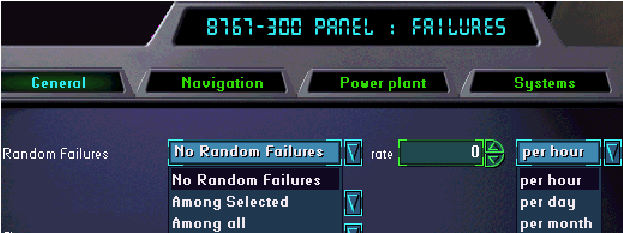
Random failures can now be selected to occur on a per hour, per day, or per month basis.
ランダム・フェイラーの発生を選択することができる単位は、1日当たり1時間当たり、あるいは1月当たりです。
The rate of the failures in the given time period may also be specified.
与えられた期間の故障の割合も指定されるかもしれません。
If selecting “Among all” for the type of failures, any and all system failures could occur.
失敗のタイプに対して「すべての中で」選択する場合、全てのシステム・フェイラーが生じるかもしれません。
If selecting “Among Selected”, then failures are based on the selected failure categories.
選択する場合「の中に、選択された。」、その後、フェイラーは選択されたフェイラーカテゴリーに基づきます。
To select a failure category for inclusion, proceed to that category listing in the failure menu and select the type of failure desired without specifying a time period.
包含に失敗カテゴリーを選ぶためには、失敗メニューにリストするそのカテゴリーに移って、期間を指定せずに望まれた失敗のタイプを選択してください。
The selection of included systems must occur prior to selecting “Among Selected” from the random failures menu.
システムを含んだ選択は、選択に先立って生じるに違いない「選択された」ランダムフェイラーメニューから。
When selecting a “rate” of failures using this menu, remember that this is the number of failures you might see over a selected time period.
このメニューを使用して、フェイラーの「割合」を選択する場合、これが選択されたフェイラーの数であることを覚えておいてください。
For example, selecting “1” failure per “day” means that you might see “1” failure of any (or selected) systems during your simulator period per day.
例えば、1「日」当たり「1」フェイラーの設定の場合、1日当たりシミュレータ期間にあなたがいくつかの(あるいは選択された)システムの「1」フェイラーを見てもよいことを意味します。
This also means that you might see 2 on one day but none the next day.
これは、さらに1日に2回は見るかもしれませんし、翌日は1回もないかもしれません。
Therefore, your selection is a “probability” selection and not an absolute since the failure rate is averaged.
したがって、あなたの選択は「見込み」選択です、そして絶対に起こるフェイラー割合ではなく平均値です。
● New failures added to the General failures menu.
新しいフェイラーは一般的なフェイラーメニューを追加しました。
The following new failures have been added to the failure menu:
次の新しいフェイラーがフェイラーメニューに加えられました:
-- Stabilizer trim failure
スタビライザー・トリム・フェイラー
-- Cathode Ray Tube failures
CRTフェイラー
-- Pitot Heat failure (PROBE HEAT annunciations on EICAS)
ピトー・ヒート・フェイラー(EICASにプローブ・ヒート表示)
-- Crew Alerting System failures
乗員・アラート・システム・フェイラー
09
● Realism options moved to the new “Realism & carrier options…” submenu.
リアリズム・オプションは新しい「リアリズム&キャリアーオプション…」サブメニューに移動しました。
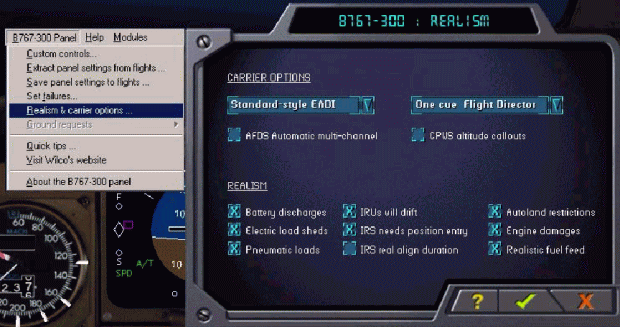
The “Realism” options that were listed at the bottom of the Failures “General” tab have now been moved to this new submenu of the B767-300 Menu.
フェイラーの「一般的」タブの下にリストされた「リアリズム」オプションはB767-300メニューのこの新しいサブメニューに移動されました。
● Realistic IRS alignment period option added.
現実的なIRSアラインメントの持続時間のオプションが追加されました。
In the new “Realism & carrier options…” submenu, there is a check box option for “IRS real align duration”.
その新しい「リアリズム&キャリアーoptions…」サブメニューの中に「IRSアラインの現実的な持続時間」のためのチェックボックス・オプションがあります。
If this box is checked, IRS full alignment takes 10 minutes.
このボックスがチェックされた場合、IRSのフルアラインには10分かかります。
Without this box checked, the IRS full alignment period is 2 minutes.
このボックスがチェックされない場合は、IRSのフルアラインに掛かる時間は2分です。
This gives the sim pilot the option to better simulate reality since the real aircraft takes 10 minutes to fully align the IRS.
これは、simパイロットに実際の航空機が完全にIRSをアラインさせるために10分をとるのでより現実をシミュレートするオプションを与えます。
● New Carrier Options section added.
新しいキャリアーオプションのセクションが追加されました。
This section is part of the new “Realism & carrier options…” submenu.
このセクションは新しい「リアリズム&キャリアーoptions…」サブメニューの一部です。
There are two drop down menu lists and two check box items.
2つのドロップダウンメニューリストと2つのチェックボックスがあります。
The drop down list on the left side allows for the selection of different EADI designs (more info in section 2 of this document).
左側のドロップダウンリストは、異なるEADIデザインの選択です(このドキュメントのセクション2に情報があります)。
The drop down list on the right side allows for the selection of two different Flight Director designs (more information in section 2 of this document).
右側のドロップダウンリストは、2つの異なるフライトディレクターデザインの選択です(このドキュメントのセクション2に情報があります)。
The “AFDS Automatic multi-channel” option when checked provides for automatic engagement of the autoland mode when the APP mode is selected.
APPモードが選択されており、「AFDS自動マルチチャンネル」オプションがチェックされた時は、自動着陸モードの自動エンゲージを行います。
If it is not checked, the standard operating technique of manually selecting the other autopilots to engage the autoland mode is required.
それがチェックされない場合、自動着陸モードをエンゲージするまで手動で他の自動操縦装置を選択する標準操作の技術が要求されます。
The “GPWS altitude callouts” when checked enables the altitude callout system.
「GPWS高度コール」が選択された場合は高度コールシステムが働きます。
If it is not checked, no altitude callouts are observed.
それがチェックされない場合、高度コールは行われません。
● New “Save panel settings to flight” menu option added.
新しい「フライトの保存パネルの設定」がメニュー・オプションに追加されました。
It is now possible to update the 767 panel settings in an already saved flight.
それは、既に保存されたフライトでの767のパネル・セッティングを更新することができます。
A practical example of how to use this feature would be to “refresh” a saved situation with a new panel configuration, without having to resave the situation.
この機能を使用する方法の実際的な例は状況を再度保存する必要なしに、新しいパネル配置で保存された状況を「リフレッシュする」ことでしょう。
This option also facilitates the transfer of panel settings from one saved situation to another.
このオプションは、さらにある保存された状況から別の状況へパネル・セッティングの転送も行えます。
Windows95 Note: It is not possible for Windows95 users to save a flight using the FS2000 “Save flight” menu and have the panel data remember.
ウィンドウズ95での注意:FS2000の「フライトのセーブ」メニューを使用してフライトを保存しても、パネル・データを呼び戻すことはウィンドウズ95ユーザにとって可能ではありません。
However, it is possible to save a flight using the FS2000 menu, and then take the extra step of saving the panel settings to that flight using this menu option.
しかしながら、FS2000メニューを使用して、フライトを保存し、次にこのメニュー・オプションを使用してその飛行のパネル・セッティングを保存することで可能になります。
10
To use this feature, set up the 767 panel with the configuration you desire.
この機能を使用するためには、希望の設定に767のパネルをセット・アップしてください。
Now select the “Save panel settings to flight” option found in the B767-300 Menu.
B767-300メニューで見つかった「パネル・セッティングの保存」オプションを選択してください。
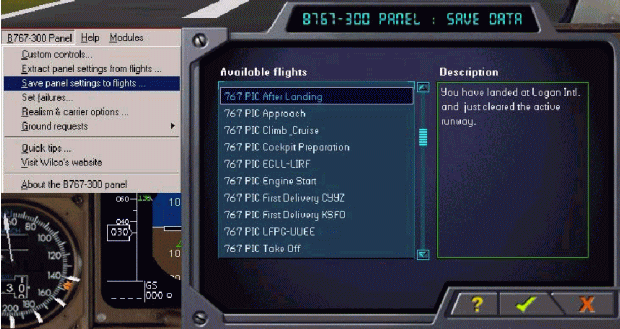
Locate the saved flight under the “Available flights” column that you wish to save the new panel settings in.
新しいパネル・セッティングを保存したい「利用可能なフライト」カラムの下に保存してください。
Select that flight by highlighting it and then press the check mark to save the new panel settings.
その飛行を選択でハイライトにして、次に新しいパネル・セッティングを保存するためにチェックマークを押してください。
You may be presented with a confirmation screen during this process.
このプロセスの間に確認スクリーンが表示されます。
The next time you load that flight situation, the new panel settings that you have just saved will be loaded.
次の時にその飛行状況をロードすると、先ほど保存した新しいパネル・セッティングがロードされるでしょう。
This feature is very similar to the “Extract panel settings from flights…” menu option in that you are manipulating flights that have been saved using the FS2000 “Save flight” menu.
この機能は、「フライトからのパネルセッティングの抽出」と非常に類似しています。FS2000 の「フライトの保存」を使ってフライトを保存します。
Once a saved flights panel settings have been updated using the “Save panel settings” menu described here, they can be extracted at any time by using the “Extract panel settings” menu item.
一度保存されたフライト・パネル・セッティングは「保存パネル・セッティング」メニューを使用して更新されました。ここに記述したそれらは「パネル・セッティングの抽出」メニューの使用によりいつでも抽出することができます。

