 |
|
FOR FLIGHT SIMULATOR USE ONLY. NOT FOR USE
IN REAL AVIATION. Level-D Simulations 767-300...........Page
8
INTRODUCTION and OVERVIEW
| <<TOPページ | <Level-D 767 メニュー | <マニュアル目次 | <前のページ | >次のページへ |
INTRODUCTION and OVERVIEW
序文と概要
Thank you for purchasing the Level-D Simulations
767-300 package.
Level-D Simulations 767-300 をお買上げいただき、ありがとうございます。
This manual is intended to familiarize you
with the operation of the aircraft痴 panel
and systems.
このマニュアルは航空機の操縦計器とシステムに習熟するための説明書です。
The panel is a complete reproduction of the
767-300 cockpit in both the traditional (2D)
multi-panel environment, as well as a fully
functional virtual (3D) cockpit.
パネルは完全に全ての機能が備えられたバーチャルコクピット(3D)と従来のマルチパネル(2D)の環境があり、767-300のコックピットの完全な再現がなされています。
The included aircraft comes in a variety
of aircraft liveries that can be customized
using the Text-o-matic utility provided by
Flight One.
同梱されている航空機は、Flight One の Text-o-matic
のようなユーティリティを用いれば、カスタマイズすることができます。
Selection of one of the included aircraft
via the normal FS2004 simulator menu loads
both the aircraft and the panels.
標準のFS2004のメニューによりLevel-Dで用意された航空機のうちの1つを選択することで航空機およびパネルの両方がロードされます。
This section of the manual outlines the panel
layout and menu controls.
本章ではパネルの配置とメニュー操作について解説します。
A "Level-D" menu is available within
the FS2004 menu bar for the selection of
available custom features.
FS2004のメニュー内に "Level-D" メニューが追加され利用可能となります。
This menu is described in detail within this
section.
この章ではメニューを詳しく説明します。
The remaining sections of this manual explain
the aircraft systems and controls.
残りの章では航空機のシステムと操作について詳述します。
The panel is initially loaded in a "Ready-to-fly"
state.
パネルを最初に読み込むと、「飛行準備の整った状態」になっています。
All systems are set correctly for normal
flight operations.
つまり、すべての通常飛行操作ができるように設定されていて、
The aircraft can be flown manually using
all normal simulator controls available in
FS2004.
航空機はFS2004の通常操作により手動で飛行が可能です。
To use the automatic pilot and navigation
capabilities of the aircraft, it is recommended
that the AFDS and FMC sections of this manual
be reviewed thoroughly.
オートパイロットと航法機能を使用するには、このマニュアルの
AFDS と FMC について解説してある章をよく読めば良いでしょう。
Cockpit Panels (2D)
コクピットパネル
The aircraft initially loads with the 2D
cockpit presented.
最初に航空機を読み込むと2Dパネルになります。
This is a multi-panel environment where different
views are attained by switching the visible
panels on and off.
このパネルは多重パネル環境となっていて、それぞれのパネル画面を切り替えながら使っていきます。
These views can be controlled via the FS2004
menu, control buttons on the main panel,
or by using keyboard keystroke combinations.
これらの画面は、FS2004のメニュー、メインパネル上のコントロールボタン、あるいはキーボードの組み合わせによって制御します。
The following panel views are available:
パネルビューの切り替えには以下が利用可能です:
| パネルタイプ | パネル内容 | ディスプレイコントロール |
| キャプテン側オーバーヘッド | 左側から見たメインコクピットウィンドウのポストおよびライトのスイッチ郡 | <Shift><1> |
| キャプテン側メインパネル | 左側のメインコクピット計器ディスプレイ | <Shift><2> または "Capt" ボタン |
| F/O 側オーバーヘッド | 右側から見たメインコクピットウィンドウのポストおよびライトスイッチ郡 | <Shift><3> |
| F/O 側メインパネル | 右側のメインコクピット計器ディスプレイ | <Shift><4> または "F/O" ボタン |
| オーバーヘッドシステムパネル | 完璧なオーバーヘッドパネル | <Shift><5> または "OVHD" ボタン |
| ペデスタルコントロール | スロットル装置、火災コントロール、無線通信装置 | <Shift><6> または "PDST" ボタン |
| FMC CDU | FMC コントロールディスプレイユニット | <Shift><7> または "FMC" ボタン |
| AFDS MCP | オートパイロットコントロールパネルのウィンドウ表示 | <Shift><8> または "MCP" ボタン |
| スタンバイ計器 | スタンバイの姿勢計、高度計、対気速度計 | <Shift><9> |
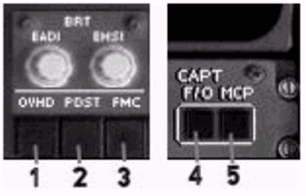
Control buttons are provided on the main
panel to toggle the display of available
cockpit panels.
それぞれのコクピットパネルはメインパネルのコントロールボタンから切り替え表示ができます。
|
|
The Captains main panel and visible overhead
are the only panels visible when the cockpit
is initially loaded.
操縦席画面が最初に読み込まれたときに表示されるのは、機長席のメインパネルと機長席頭上パネルだけです。
The other panels must be selected manually.
他のパネルを表示するには手動操作が必要です。
It is recommended that if the F/O panel is
to be used during the flight, select the
F/O panel by pressing the "F/O"
button on the main panel prior to displaying
any other panel window.
もし飛行中に副操縦士パネルを使用するのであれば、他のパネルウインドウを表示する前にメインパネルの"F/O"ボタンを押して、F/Oパネルを表示しておくとよいでしょう。
This action overcomes the simulator display
limitation where panels are improperly overlapped
based on their order of selection.
こうしておけば他の画面が重複して選ばれてしまうのを避けることができます。
Once the F/O panel has been displayed, all
subsequent panel windows will open on top
of the Captain and F/O panel.
副操縦士パネルが選択されるとそれに続くパネルは機長席パネルと副操縦士パネルの上部に表示されます。
Virtual Panel (3D)
バーチャルパネル
The virtual cockpit display is available
using the normal VIEWS sub-menu on the FS2004
menu bar.
コクピットのバーチャル画面は、FS2004のメニューバー、VIEWS
から表示できます。
It can also be displayed by using the keyboard
controls <s> and <shift><s>.
あるいは、キーボードの<s> または<shift><s>からも表示可能です。
All controls found on the main (2D) panels
are available within the virtual cockpit.
2Dパネルにあるすべてのコントロールは、バーチャルコクピットでも有効です。
Any switch actuated in the virtual cockpit
is also actuated on the 2D panels, and vice-versa.
バーチャルコクピットで有効なスイッチは2Dパネルでも有効ですし、その逆も有効です。
The FMC cannot be controlled from the FMC
displays within the virtual cockpit.
ただし、FMCだけはバーチャルコクピットの画面から直接操作することはできません。
To operate the FMC, the normal 2D window
must be displayed.
FMCを操作するには、2Dウィンドウを開かなければなりません。
Mouse clicking on the FMC within the virtual
cockpit causes the 2D FMC CDU to display
in a separate window.
マウスでバーチャルコクピットのFMCをクリックすれば、2DのFMC CDUの画面が独立して表示されます。
This window may also be displayed using the
<shift><7> keyboard combination.
これは、<shift><7>でも可能です。
Changes to the FMC are made from within the
windowed FMC CDU while operating in the virtual
cockpit.
バーチャルコクピット表示中のFMCコントロールの変更は、このFMC CDU画面の中で行われます。
Click spot areas are available from within
the virtual cockpit to display 2D system
panels.
クリック・スポット・エリアは、2Dシステム・パネルを表示するバーチャルコックピットの内部から利用可能です。
Clicking on the glare shield just above the
EADI displays the AFDS MCP 2D panel.
ちょうどEADIの上のグレアシールドをクリックすることによってAFDS
MCP 2Dパネルが表示されます。
Clicking on the white area just above the
main window (to the left and right of the
overhead) displays the 2D overhead panel
controls.
メインウィンドウ(オーバーヘッドの左および右)の上の白いエリアをクリックすることにより2Dオーバーヘッド・パネル・コントロールが表示されます。
And as previously mentioned, pressing on
the FMC within the virtual cockpit displays
the 2D FMC CDU panel.
また、バーチャルコックピット内のFMCを押すことにより2D
FMC CDUパネルが表示されます。
These panels are helpful for those that use
multi-monitor setups and for quick selection
of an aircraft system without changing the
virtual cockpit point of view.
バーチャルコックピット視点を変更せずに、マルチモニターセット・アップを使用する場合や航空機システムの迅速な選択にはこれらのパネルが有用です。
Level-D Menu
The Level-D menu is available via the FS2004
menu bar along the top of the simulator window.
Level-Dのメニューはシミュレータ画面の上部にあるFS2004のメニューバーから操作します。
This menu is used for the selection of panel
options, failures, settings and ground requests.
このメニューから、故障、設定、グランドリクェストなどのパネルオプションを選びます。
The first four selections listed have sub-menu's.
最初の4つのメニューには、サブメニューがあります。
These submenu's are explained in further
detail below.
これらのサブメニューについては後で詳しく説明します。
Selection of "Quick tips" displays
the quick tip dialogue box seen when the
panel is first loaded.
“Quick tips …”を選ぶとパネルが最初に読み込まれた時に見られる
quick tip(簡略説明)を表示します。
Selection of "Visit Level-D Simulations
website" opens up the default internet
browser and automatically displays the Level-D
website.
“Visit Level-D Simulations website”を選ぶと、デフォルトのインターネットブラウザにより、Level-Dのウェブサイトが開かれます。
Selection of "About Level-D Simulations"
displays the credit roll call for the 767-300
package.
“About Level-D Simulations”を選ぶと767-300
packageを求めるクレジット文書が現れます。
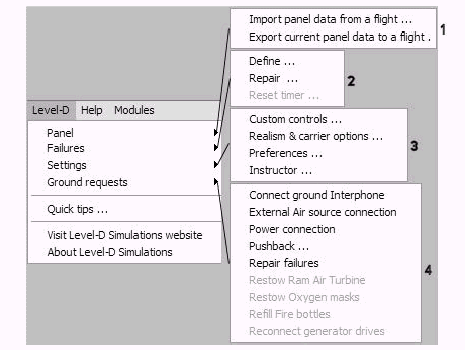
1- Panel:
Permits the import and export of panel settings
to and from saved flights.
フライトの保存ファイルからのパネル設定の読み込み、書き出しを行います。
All flights saved via the FS2004 "Save
Flight" menu have the 767 panel settings
at the time of saving stored in a file along
with the default simulator settings.
FS2004の“Save Flight”によって保存したすべてのフライトには、767パネルの設定がデフォルトの設定とともに保存されています。
These 767 specific panel settings may be
imported and exported using this menu option.
このメニューオプションを使ってこれら767固有のパネル設定だけを独立して読み込み、保存ができます。
Both of these options use the same selection
boxes that list the saved 767 flights that
are available for import/export.
これら2つのオプションは同じ選択ボックスを使用します。この選択ボックスには767のフライトがリストアップされていてそのフライトに対して、読み込み、書き出しができるのです。
Simply select the desired flight and then
follow the directions in the dialogue boxes
to perform the selected operation.
このボックスのフライトを選んでその後の指示に従うだけでこの操作ができます。
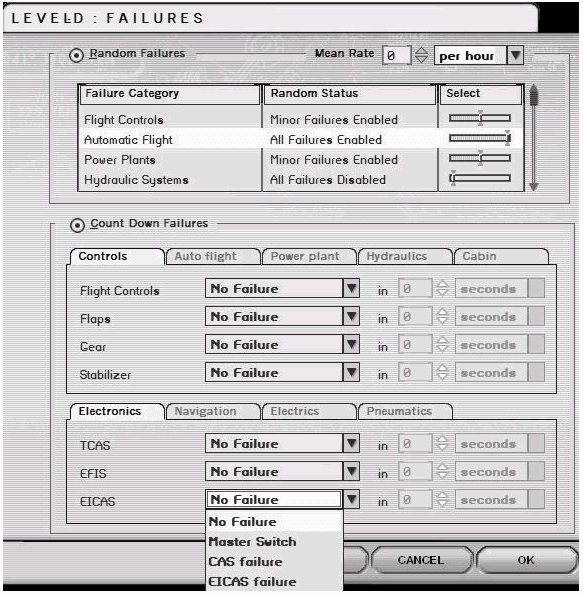
2- Failures:
故障
Allows for the setting and resetting of 767
system failures.
767システムに発生させることのできる故障を設定できます。
3- Setting:
設定
Presents a sub-menu of options available
for the 767 panel.
767パネルで利用可能なオプションを表示します。
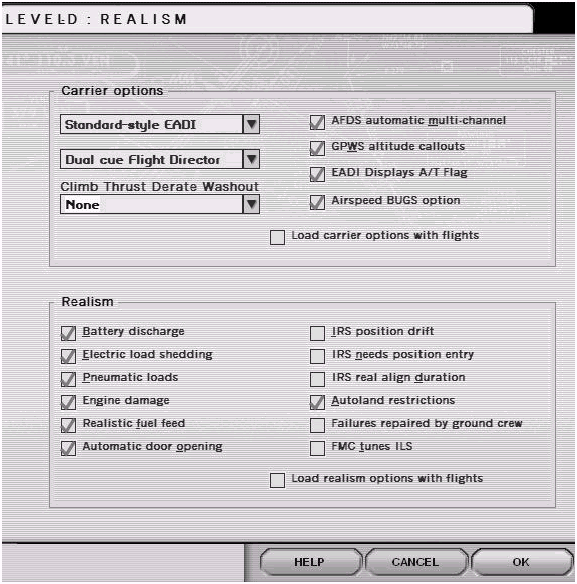
Carrier options:
キャリアオプション
Realism: Each explanation is for the checked condition.
リアリズム(現実性)の設定 : 以下の説明は、チェックを入れたときの状態です。
The unchecked condition is the opposite unless
otherwise noted.
チェックを入れないときはその逆の状態になります。
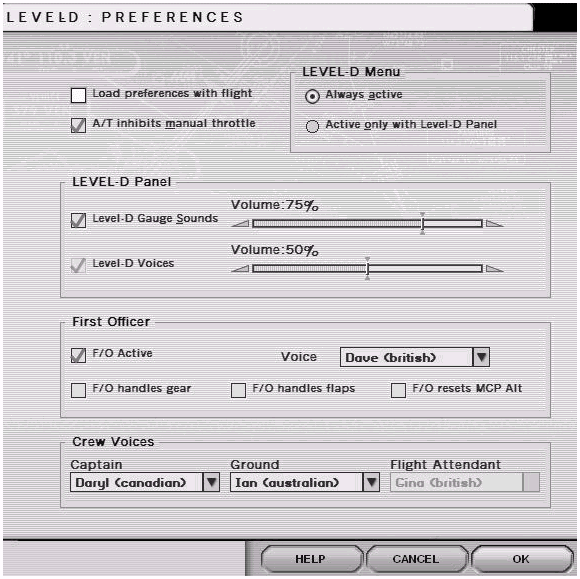
4- Ground requests:
地上クルーへの要求
Use this menu on the ground to handle requests
for items that occur outside of the aircraft.
機外操作を地上クルーに要請するにはこのメニューを使います。
The first 5 items listed (shown darker)
are
also available via the call panel on the
overhead.
最初の5項目(薄暗く表示)は、頭上パネルから操作します。
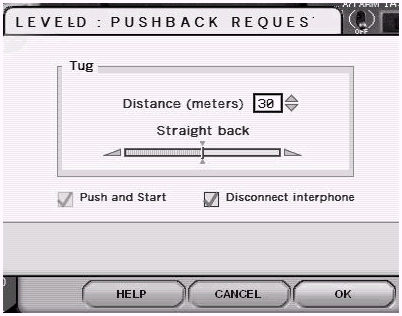
Cabin Call Controls
キャビン呼び出しの制御
The CALL panel on the overhead can be used
for ground and flight crew interaction
without
having to select the Level-D menu.
頭上にある CALL パネルを使うと、LEVEL-D
メニューを使用しなくてもグランドクルーとフライトクルーとの連絡をとることができます。
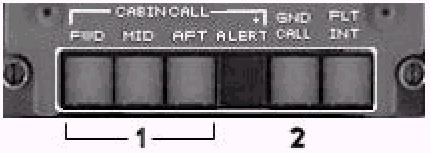
1- Cabin Call - A request from the cabin crew generates
an aural tone and causes one of the CABIN
CALL lights to illuminate.
キャビンコール : キャビンクルーからの要請があるとその要請の音声を生成し、CABIN
CALL ライトのうちの一つが点灯します。
Pressing the illuminated light displays
a
dialogue box to control the flight crew
interaction.
点灯しているライトを押すとフライトクルーの対話のためのダイアログボックスが表示されます。
Select a number in the presented dialogue
box for the desired response to a flight
crew request.
そのダイアログボックスの中からフライトクルーへの要請に対する返答の番号を選択します。
2- Ground Call - Press the GND CALL button to display a
ground crew interaction box.
グランドのコール : GND CALL ボタンを押すとグランドクルー対話ボックスが開きます。
This box contains the same selections found
in the Level-D "Ground requests"
menu.
このボックスには、LEVEL-D メニューにあるグランドクルーに対する要請
"Ground request" と同じ項目が入っています。
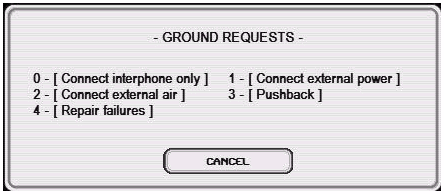
Press the number on the keyboard that corresponds
to the desired interaction.
希望する対話の番号をキーボードから押して下さい。
Further dialogue boxes are displayed when
required for each item.
それぞれの項目に対して、さらに必要があれば次のダイアログボックスが表示されます。
These interactions are the same as described
previously under "Ground requests".
これらの対話は前述した "Ground requset"
と同じ項目が入っています。
Note: When a request is being processed (after
selection), the ground requests menu is
not
available until the requested process has
been completed.
注 : ここでなされる要請がそのとき処理遂行中(選択後)であると、グランドリクエストメニューはその処理が完了するまで有効となりません。
Aircraft and Panel Lighting Controls
航空機とパネルの照明、ライト関係の制御
Control for aircraft lighting is provided
on the visible overhead panel of the 2D cockpit
and on the overhead panel in the 3D cockpit.
航空機の照明制御は、2Dコクピットの頭上パネルか3Dコクピットの頭上パネルから行います。
The controls are the same in both environments.
制御の方法は両方とも同じです。
Two of the switches control interior panel
lighting while the rest of the switches
control
exterior aircraft lights.
スイッチのうちの2つは内部照明の制御を行い、他のスイッチは機体外部の照明制御を行います。
An exciting feature of the Level-D 767
is
the implementation of individual exterior
light controls.
機体外部の照明をいろいろ制御できるのは、LEVEL-767
のわくわくするような特徴とも言えるでしょう。
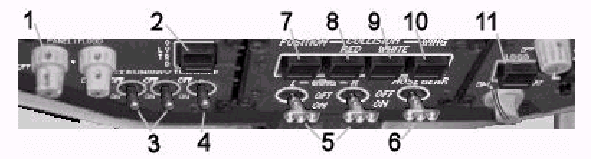
1- Panel Flood Lights: Toggles the main panel flood lights on and
off.
パネル投光ライト : パネル投光ライトのON、OFFをトグルで切り替えます。
2- Light Override Switch: Simulates the illumination of the cockpit
dome light.
ライトオーバーライドスイッチ : コクピット内の天井照明をシミュレートします。
All panels become completely illuminated
when pressed in.
これが押されるとすべてのパネルの照明が行われます。
3- Runway Turnoff Lights: Individual control over the left and right
runway turnoff lights.
滑走路進入ライト : 滑走路進入ライトを左右別々に制御します。
These lights are found within the landing
light assembly near the wing root.
このライトは主翼付け根のランディングライト群の中に設置されています。
They illuminate the sides of runways and
taxiways.
これらはランウェイサイドとタクシーウェイで点灯されます。
4- Taxi Light: Turns the taxi light on and off.
タクシーライト : タクシーライトのON、OFFを行います。
The taxi light is found near the bottom
of
the nose gear assembly.
タクシーライトはノーズギア群の底部近くに設置されています。
5- Landing Lights: Individual control over the left and right
landing lights.
ランディングライト : 左右のランディングライトを別々に制御します。
6- Nose Gear Lights: Turns the nose gear lights on and off.
ノーズギアライト : ノーズギアライトのオンオフをします。
Two nose gear lights are found near the
top
of the nose gear assembly.
ノーズギアの上の方に2つのノーズギアライトがあります。
These lights are used for takeoff and landing.
このライトは離着陸のときに使用します。
7- Position Lights: Turns the position lights on and off.
ポジションライト : ポジションライトのオンオフをします。
The positions lights are the red, green
and
white lights found at the tips of the wings.
ポジションライトは翼の先端にあって、赤、緑、白色をしています。
8- Red Anti-collision Lights: Turns the red rotating beacons on and off.
赤色衝突防止ライト : 赤色回転ビーコンのオンオフをします。
These are located on the top and the bottom
of the aircraft fuselage.
このライトは胴体の上下についています。
9- White Anti-collision Lights: Turns the white anti-collision (strobe) lights
on and off.
白色衝突防止ライト : 白色衝突防止ライト(ストロボタイプ)のオンオフをします。
These are located at the ends of each main
wing.
このライトは両主翼の先端についています。
10- Wing Lights: Turns the wing lights on and off.
ウィングライト : ウイングライトのオンオフをします。
These lights illuminate the main wings
and
are located on each side of the fuselage.
このライトは胴体の両側にあって、翼を照明します。
11- Logo Lights: Turns the logo lights on and off.
ロゴライト : ロゴライトのオンオフをします。
These lights illuminate the vertical fin.
このライトは垂直翼を照明します。
Aircraft Model Features
航空機モデルの外観
The 767-300 visual model has been expertly
detailed with many unique features and
aircraft
animations.
767の機体は、ユニークな外観と自在な動きが詳細かつ巧妙に再現されています。
All flight control surfaces move accurately
in response to cockpit controls.
すべての飛行制御機器がコクピットからのコントロールに反応して正確かつ詳細に作動します。
Gear and flap animations are accurate and
highly detailed.
特にギアとフラップの動きの正確さ、詳細さは最高のものです。
In addition to these standard aircraft animations,
some unique features can be noted on the
aircraft visual model.
さらに、これらの標準的な航空機の動きに加えて、航空機の見え方に関していくつかのユニークな点を備えています。
These include:
それらは次のようなものです。
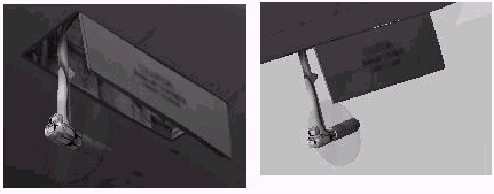
Ram Air Turbine (RAT)
ラムエアータービン(RAT)
The RAT deploys anytime both engines are
shutdown while in flight.
RATは飛行中両方のエンジンが停止するといつでも作動します。
The RAT propeller spins based on airspeed.
RATのプロペラは対気速度に基づいて回転します。
The spinner animation reacts to airspeed
changes.
その回転数は対気速度の変化に反応します。
APU Inlet Door
APU取り入れ口のドア
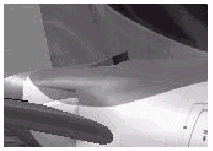
The APU inlet door opens anytime the APU
switch is in the RUN position.
APUが RUNポジションに切り替わるとAPUの取り入れ口のドアがいつでも開きます。
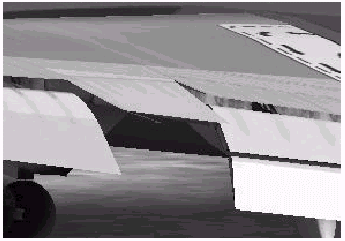
Aileron Droop
エルロンの下降
The inboard ailerons droop in response
to
flap selection.
フラップ操作に応じて、内側のエルロンが下降します。
Aileron droop is indicated in the cockpit
on the aileron pointer gauge.
エルロンの下降状態は、操縦室のエルロン指示計器に表示されます。
| <<TOPページ | <Level-D 767 メニュー | <マニュアル目次 | <前のページ | >次のページへ |